

In this tutorial we will show you how you can use n8n & Clearbit to automatically enrich your leads and send interesting leads directly to your Slack channel.
We use n8n as an automation platform, Pipedrive as an example of a CRM, Clearbit as an enrichment service and finally send everything into a Slack channel. Due to the modularity of n8n workflows, you can customize the automation according to your needs, for example with another CRM instead of Pipedrive.
Workflow Overview
We build today’s workflow in the workflow automation tool n8n and use the cloud version for this. If you see screenshots below, these are from the n8n user interface. In order to follow along, you should create a free n8n account.
If you have never used n8n before and would like to learn more about it, you can find more information here.
If you want to discover more tutorials about n8n, you will find a large selection here.
This is what the workflow looks like when it is finished. In the following, we will go through the individual steps and explain exactly what you need to do to follow along.
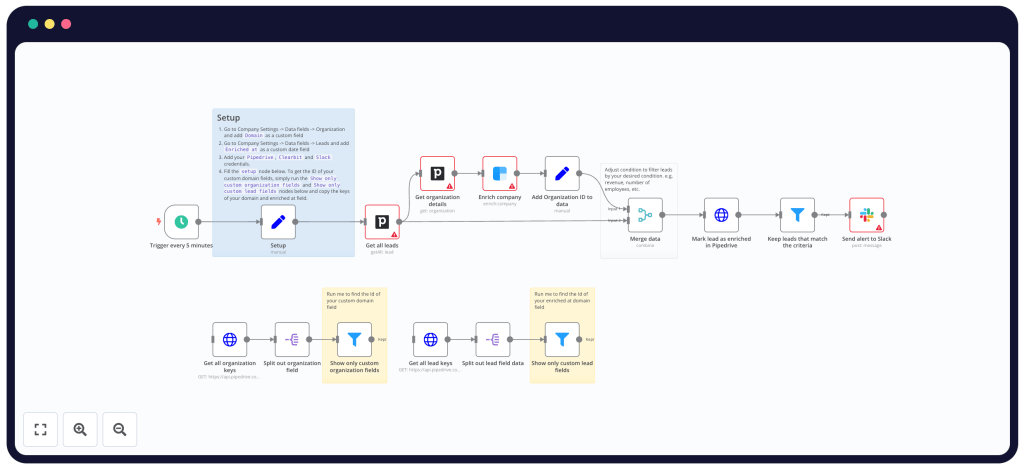
The easiest way is to copy the workflow directly into your n8n workspace.

By copying the workflow, you only have to make adjustments and a basic setup, not rebuild the entire complexity, so it greatly simplifies the tutorial.
Pre-Conditions
In addition to an n8n account, you will need a few more accesses to the external applications that we will integrate for the automation.
Pipedrive
Pipedrive is “The easy and effective CRM for closing deals” – You can try it for free.

Clearbit
With Clearbit you can “Enrich your records, score and route instantly, and reveal buying intent from your visitors.” – You need an account to integrate with it.

Slack
Slack is a widely known and adopted productivity & chat platform – You can try it for free.

Setup
To use the template, we need to make a few adjustments in the first setup step.
Firstly, we have to add two additional fields to our Pipedrive CRM, then store our credentials for the services and finally enter the necessary IDs of the respective Pitchdrive fields and our Slack channel in the “Setup” workflow node.
Custom Fields in Pipedrive
For our workflow, we need “Domain” and “Enriched At” as custom fields in our Pipedrive. In Pipedrive:
- Go to Company Settings -> Data fields -> Organization and add “
Domain” as a custom field - Go to Company Settings -> Data fields -> Leads and add “
Enriched at” as a custom date field
You have now created the required fields. Now we can take care of our credentials next.
Credentials
In n8n you can manage all access to your external services centrally in your account.
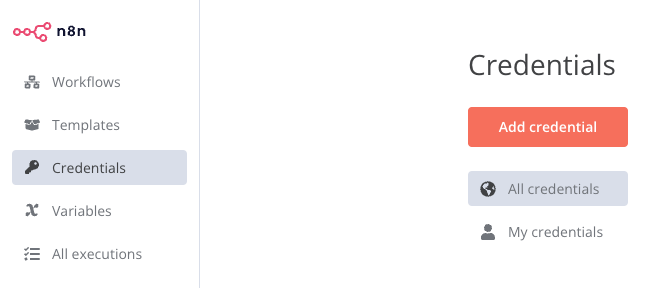
Easily add credentials for the native integrations of Pipedrive, Clearbit & Slack to your n8n cloud account here. You can then return to your workspace.
Fill Out the Setup Node
Now you just have to adjust the setup node in your workflow.

To do this, you must enter the name of the Slack channel to which the messages are to be sent and the IDs of the custom fields “Domain” & “EnrichedAt” you have added. To find out these IDs, you need to run the two “Mini Workflows” at the bottom of the template. You can then simply read off your IDs there.
Pipedrive Data Request
In order to enrich our leads in our workflow later, we first have to get them from Pipedrive into our workflow. To do this, we use the Pipedrive integration with the “Lead” resource & the “Get Many” operation. We also specify “Not Archived” as a filter here.

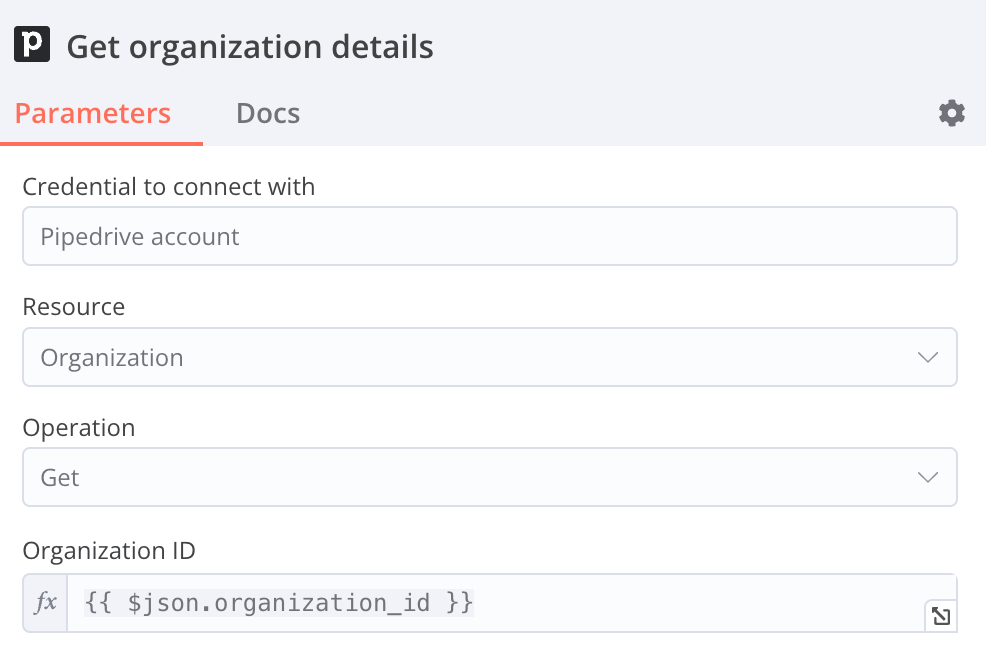
In the next step, we need to retrieve the respective data for the IDs of the organizations in order to subsequently enrich the organizations. To do this, we use a new node of the Pipedrive integration with the “Organization” resource and the “Get” operation.
The ID that this node uses to find the correct organization is the ID that we imported from Pipedrive in the previous step.
Clearbit Enrichment
With the domain integrated from Pipedrive in the last step, we can now enrich the organizations via Clearbit. We do this very simply via the Clearbit integration with the “Company” resource and the “Enrich” operation.

Mark Leads as Enriched
In order for our workflow to work in the long term, we now have to mark in our Pipedrive that we have enriched the organizations. We have already created the appropriate field in Pipedrive for this in the setup.
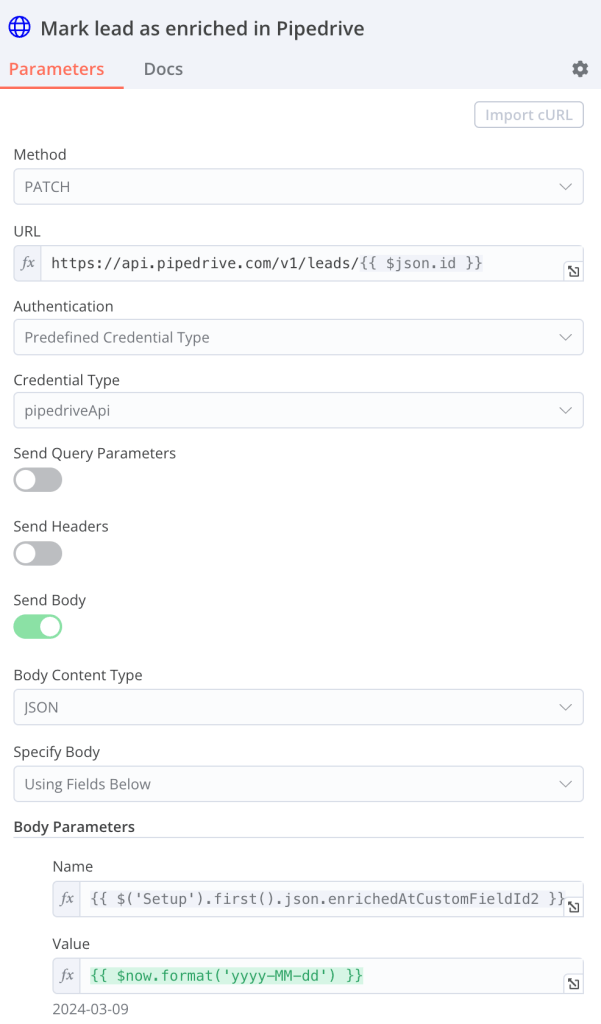
Since this functionality of the Pipedrive API is not included in the native integration, we simply use the API directly via an HTTP request node from n8n.
We use the ID to assign today’s date to the “Enriched At” field of the correct organization.
Send Slack Messages
As a final step, we can now send those leads that fulfill certain (individual) requirements by message to a Slack channel specified by us.
To do this, we must first define the criteria according to which we want to filter. By default, we filter for B2B companies with >100 employees in the template, but you can customize this according to your requirements.
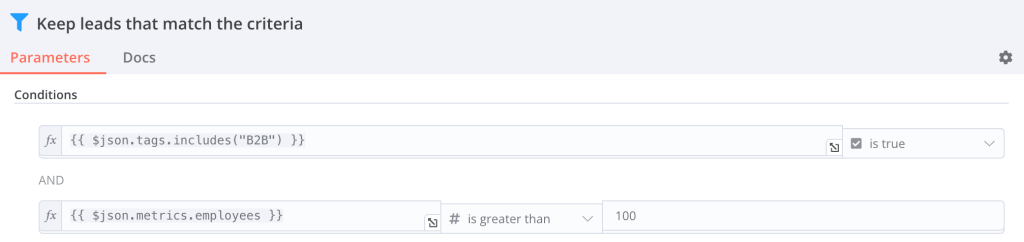
Now we can use the Slack integration to send a message to each of these companies. You can easily customize what exactly this message looks like in the Slack Integration Node.

Congratulations! You’ve built the finished integration and now you always get Slack messages when exciting new companies are in your funnel. If you are interested in diving even deeper into the world of n8n, here are a few examples of further automations that are possible:


 Master Automation with n8n - n8n-automation.com
Leave a comment