

Today we will explore how to make your first OpenAI API Call without extensive knowledge of REST APIs and programming in general, with the help of the cloud version of the workflow automation tool n8n. We will cover the topics of how to get started with n8n, setting up your OpenAI credentials, and the parameters you need to define and we will make our first API call.
Getting Started with n8n Cloud
if you have never used n8n before and are looking for a detailed guide for your setup, click here.
Otherwise, you can simply start a free trial here and jump straight in after the intuitive onboarding.
To get started with this tutorial, you should open a new (empty) workflow. If you have just opened your account, you will already be in an empty workflow and can get started right away.
OpenAI Integration in n8n
The OpenAI Integration Node
There are several ways to work with the OpenAI API in n8n. As with any other API, the OpenAI API can also be accessed via the HTTP requests node of n8n. A guide on how to work with this node can be found here. However, since there is a direct integration for OpenAI in the cloud version of n8n, we will use it, as it makes the requests even easier and less error-prone.

To find the integration, click on the + in the top right-hand corner of your workflow and then search for OpenAI.
If you have not yet defined a trigger node, you usually have to do this first. For today it is sufficient to select the “Manually” trigger node. You can find a more detailed guide about triggers in our Getting Started with n8n Cloud Guide.

Setting Up Your Credentials
Since the OpenAI API is not free, we need an account on the OpenAI platform to be able to use it. If you don’t have an account yet, you can create one via this link and then charge it to use it afterward.
Now that you have a topped up account, you can return to n8n. In the n8n OpenAI Integration node, select Credential to connect with and click on Create new Credential.

You will now need your OpenAI API key to authorize your account with n8n. Once you have entered this, you only need to name your credentials, save them, return to your workflow, and pick the newly created credential in the dropdown list.
Resources, Operation & Models
Now that we have taken care of the authorization, let’s take care of what we want to do with the API. There are various default settings for this in n8n. The first is called Resources and there is a choice between Chat, Image & Text.
It is also pointed out that, as mentioned, you can also create a custom API call via the HTTP request node.

Image
With the Image Resource you can create images using the Dall-e models from OpenAI. If you are expecting the new Visions endpoint here (i.e. the option to define images as input), I have to disappoint you, because you will find this under the Chat resource.
Text
Under the text resource you will find various operations that you can perform, such as completions. Since this is a legacy version and today’s chat endpoints do much of what the Completions endpoint can do better, it is generally pointless to use this operation.
In addition to Completions, you can also use the Edit and Moderate endpoints under the Text resource, each with different models.

Chat
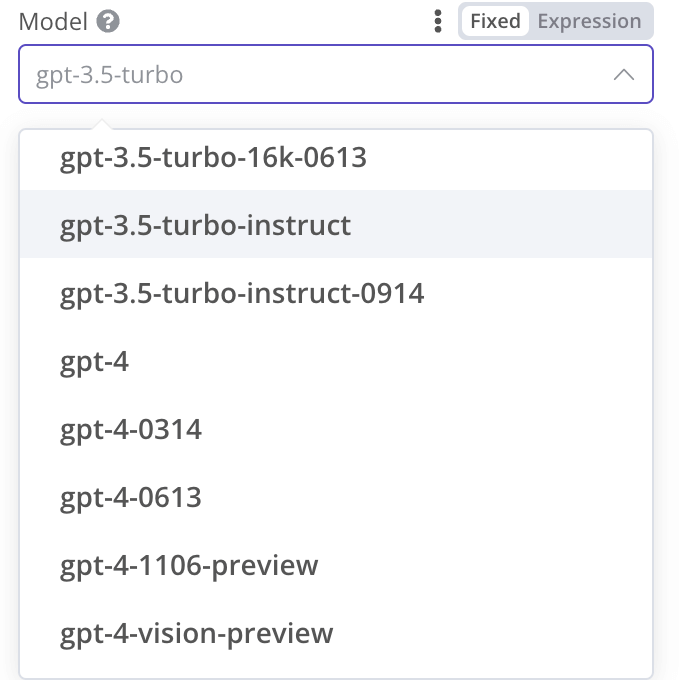
The Chat Endpoint is your way to go if you want a solution for classic text-based tasks. There is only the Operation Completion for the Chat Endpoint, but a wide variety of models to choose from. For most use cases, Chat is the right choice among the resources.
As already mentioned, the new Visions API can also be used here with images as input.
Prompting With The Chat Resource
As if you were working with the normal API from OpenAI, there are also 3 different roles in the n8n integration: Assistant, System & User from which you can choose for prompting.

Assistant: The AI assistant’s news so far. Usually not necessary for non-chat use cases without consecutive prompts.
System: Instructions to the system that define the basic behavior. Such a system prompt often determines how well your AI use case is implemented.
User: Here you describe the task for one-off assignments and use it as a field for user input for chat assignments.
Example Execution
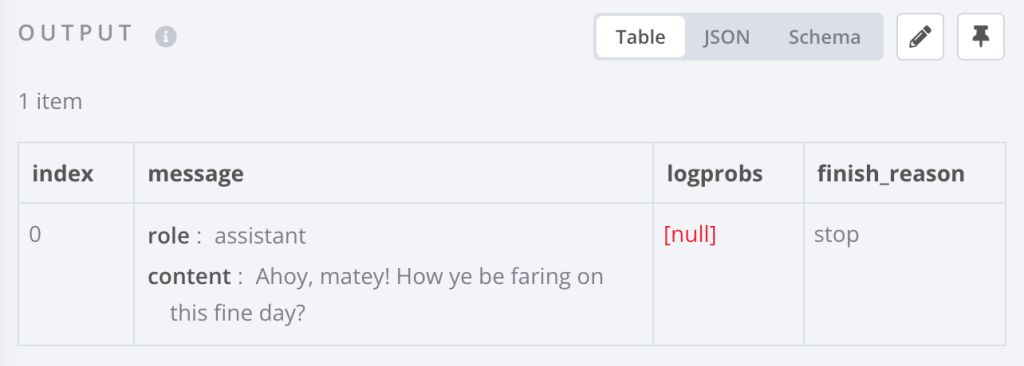
To end with a practical demonstration, here is an example of filled prompt parameters for a model to behave like a pirate and a user saying hello.

If you run this prompt template you should get an answer similar to mine.
I hope this tutorial has helped you to take your first steps with the OpenAI API and maybe one or the other of you will build a product with OpenAI and n8n as the foundation.


 Master Automation with n8n - n8n-automation.com
Leave a comment